← Back to Home

oakallow Info

Everything about oakallow on one page. Security infrastructure for AI agents.

Sections

Getting Started (6)Permissions & Approvals (12)Tokens & Audit (3)Security & Architecture (7)Billing & Account (2)

Getting Started

What is oakallow and who is it for?

oakallow is a hosted security service for AI agent tool execution. You reach it through the REST API or the MCP connector — same governance, two surfaces.

What it does:

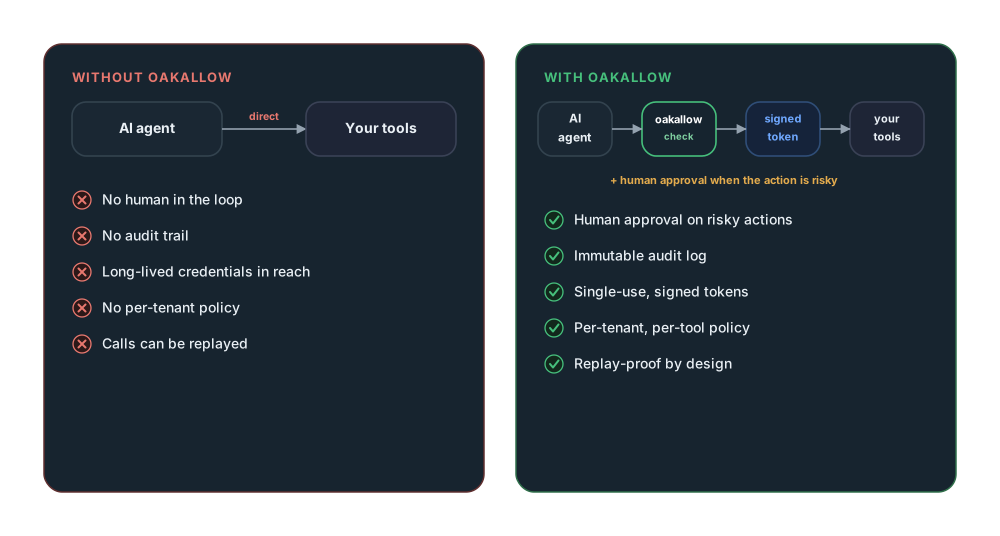
  • Checks permissions before your AI agent executes any tool
  • Routes high-risk actions through human approval workflows
  • Mints cryptographic execution tokens for auditable proof
  • Logs every permission check, approval, and execution

oakallow is not a monitoring platform or an AI agent framework. It is the security layer that sits between your agent and the tools it wants to run.

Who it is for:

  • Developers building AI agents that execute real-world actions
  • Teams that need permission governance for multi-tenant AI applications
  • Anyone who wants their AI to ask before it acts

How quickly can I get started?

Most developers are integrated within an hour. There are two integration paths and you can use either or both.

Shared setup (both paths):

  • Create an account on the web at oakallow.io. Sign-in is by passkey or email one-time code, and new accounts receive $5 in free credits.
  • Enroll a passkey on your first sign-in. oakallow requires multi-factor authentication on every account.
  • Save the 10 recovery codes that are generated automatically when you enroll your first passkey. Store them somewhere safe.
  • Register your tools and define permission rules from the dashboard (or skip and let the MCP connector auto-discover them).

REST API path:

  • Generate a management API key for setup, then a standard API key for runtime.
  • Call the permission check endpoint before your agent acts, mint a token, log the result.

MCP connector path:

  • Add https://api.oakallow.io/mcp as an MCP server in your client (Claude Desktop, ChatGPT, Cowork, or any MCP-compatible agent). OAuth handles auth automatically.
  • Your agent calls oakallow tools by name. Unknown tools auto-register as drafts gated on requires_approval.

The dashboard includes a Quickstart guide and an API Builder that generates ready-to-run seed scripts.

Do you have iOS and Android apps?

Yes. oakallow has companion apps on the App Store and Google Play. The mobile apps focus on the things you need on the go: signing in with a passkey, reviewing and deciding on approval requests, viewing activity, and managing your credit balance.

What the apps do:

  • Sign in with a platform passkey (Face ID, Touch ID, fingerprint, or screen lock)
  • Review and approve or deny pending approval requests
  • See real-time activity, balance, and team status
  • Buy credits via Apple In-App Purchase or Google Play Billing

What the apps do not do:

  • Account creation. Sign up at oakallow.io on the web.
  • Recovery code generation or viewing. Manage recovery codes from the web Security page.
  • Configuration of tools, organizations, tenants, or permission rules. Use the web dashboard for setup.

Each mobile install is treated as its own device. The first time you sign in to the app, your passkey is verified through whatever credential authority owns it (iCloud Keychain on iOS, Google Password Manager on Android, or a hardware security key). If you have a passkey on a different device family, sign-in still works using WebAuthn cross-device flow (your phone shows a QR code that you scan with the device that holds the passkey). For everyday convenience, the app may suggest adding a passkey on the current device after your first sign-in.

What are the different API key tiers?

oakallow has two API key tiers:

  • Management keys are for setup and configuration. Use them to register tools, create organizations, define tenants, and set permission rules. Management operations are free. Management keys cannot access runtime endpoints.
  • Standard keys are for runtime. Your AI agent uses these to check permissions, mint execution tokens, and log results. Runtime operations are billed at $0.005 per call.

Each key is scoped to a single organization. API keys are SHA-256 hashed at creation. The raw key is shown once and cannot be retrieved.

What is an Organization in oakallow?

An Organization represents your application or project. Everything in oakallow is scoped to an organization: tools, tenants, resources, permission rules, and API keys.

If you are building a single AI agent, you will have one organization. If you are building a multi-tenant platform where each of your customers has their own AI agent, each customer can be a Tenant within your organization, with separate permission rules.

What is a Tenant?

A Tenant represents one of your customers or end-users within your organization.

Tenants enable multi-tenant permission management. You can define permission rules that are scoped to a specific tenant, so Customer A might have different tool permissions than Customer B, all within the same organization.

Tenants are optional. If your AI agent serves a single team, you can skip tenants entirely and define permissions at the organization level.

Permissions & Approvals

How does permission resolution work?

oakallow uses a 12-level resolution chain to determine the permission for any tool execution. The chain evaluates from most specific to least specific:

Tenant-scoped rules (if a tenant is specified):

  • Tenant + resource + tool + method
  • Tenant + resource + tool
  • Tenant + tool + method
  • Tenant + tool
  • Tenant + resource + method
  • Tenant + resource
  • Tenant + method
  • Tenant wildcard

Org-scoped rules (same 8 levels without tenant):

  • Org + resource + tool + method through org wildcard

Fallbacks:

  • Tool default permission
  • Category default permission
  • Tool approved status (if approved and no rules match, defaults to allowed)
  • Fail-safe: requires_approval

The first match wins. If nothing matches and the tool is not pre-approved, the fail-safe is always "requires approval." Permission resolution happens at the edge via Cloudflare Workers with single-digit millisecond resolution.

What are the three permission levels?

Every permission check returns one of three results:

  • allowed means the tool can execute immediately. Your agent should proceed.
  • requires_approval means a human must review and approve the action before it executes. Your system should create an approval request and wait for a decision.
  • disabled means the tool must not execute under any circumstances. Your agent should not attempt the action.

How do approval workflows work?

When a permission check returns "requires_approval," your system creates an approval request via the REST API.

The approval request includes the tool name, parameters, reasoning, and any context your agent wants to provide.

oakallow then sends a webhook to your configured URL with the approval details (event: approval.created). Your system routes this notification to the appropriate reviewer via Slack, Teams, PagerDuty, email, or any channel you choose.

The reviewer approves or denies via the oakallow dashboard or mobile app, or your system calls the decide endpoint directly. oakallow sends another webhook with the decision (event: approval.decided).

Your agent receives the decision via the webhook or by polling the approval status endpoint. Once approved, you mint an execution token and proceed.

Approvals have a configurable timeout (default: 1 hour). If no decision is made within the timeout, the approval expires and the tool does not execute.

How do approval webhooks work?

Configure a webhook URL per organization in the Settings page. oakallow sends two types of events:

  • approval.created fires when your agent creates an approval request. The payload includes the tool name, parameters, reason, approval ID, and expiration time.
  • approval.decided fires when a human approves or denies the request. The payload includes the decision, who decided, and any notes.

Payloads are signed with HMAC-SHA256 using your organization's webhook secret. Verify the X-Oakallow-Signature header to confirm the request is from oakallow.

Webhooks are fire-and-forget from oakallow's side. If your endpoint is unreachable, the approval still exists and can be polled via GET /v1/approvals/:id as a fallback.

How do Slack notifications work?

Add a Slack notification channel from Settings → Notification Channels. Click "Add to Slack" to authorize the Oakallow Slack app in your workspace and pick a channel — we fill the webhook URL in for you. Manual paste is also supported if you would rather create your own incoming webhook in Slack.

Once configured, your channel receives a Block Kit card for each approval event:

  • Approval requested when an agent's action needs review
  • Approval granted or denied when a decision is recorded
  • Approval expired when a request times out without a decision

Each card shows the tool name, a short PII-scrubbed reason, and an oakallow reference id (REF-XXXXXXXX-XXXX). We never send tool parameters, customer data, or other identifying details to Slack.

This is alerting only. Approval decisions are made exclusively in the Oakallow mobile app with enforced multi-factor authentication. Slack delivers the alert; the mobile app handles the decision. This separation keeps your audit trail intact and ensures every decision is signed by a verified, authorized approver — never by someone who happens to have access to a Slack channel.

You can scope each Slack channel to fire team-wide (every approval), only when Level 1 approvers are being asked, or only when Level 2 approvers are being asked. The Slack app requests the incoming-webhook scope only — it cannot read messages, send DMs, or access workspace data.

How does the PagerDuty integration work?

Add a PagerDuty notification channel from Settings → Notification Channels. You will need three things from your PagerDuty account:

  • API Key: a General Access API Key (not Read-Only). Find it in PagerDuty → Integrations → API Access Keys, then copy the API Key value (not the ID column).
  • PagerDuty User Email: the email of an actual user in your PagerDuty account. This is the requester recorded against incidents Oakallow creates.
  • Service ID: open Services → Service Directory, click your service, and copy the ID from the URL (it appears as /service-directory/<ID>). This is NOT the integration ID and NOT the API Key ID — those look identical but are different things.

When an approval event fires, Oakallow creates an incident on your PagerDuty service. The Service's Escalation Policy decides who gets paged. Each incident shows the tool name, the oakallow reference id, and a short PII-scrubbed reason. We never send tool parameters, customer data, or end-user identities to PagerDuty.

  • Approval requested creates an incident at your default urgency.
  • Approval granted or denied resolves the matching incident.
  • Approval expired creates an incident at high urgency regardless of the default — this is the case where someone needs to look at a request that timed out.

This is alerting only. Approvals are still decided exclusively in the Oakallow mobile app with enforced multi-factor authentication. PagerDuty pages the right human; the mobile app is where the decision is made and signed.

The API Key is stored encrypted at rest and is write-only after creation — we never display it back to you. To rotate, edit the channel in Settings, paste the new key, save, and click Test to confirm delivery.

What data does Oakallow send to Slack, PagerDuty, or webhooks I configure?

Notification payloads are intentionally minimal. Each event contains:

  • Event type (approval.created, approval.decided, approval.expired)
  • Tool name
  • A PII-scrubbed reason string (max 200 characters, automatic redaction of common PII patterns before storage)
  • The oakallow reference id (REF-XXXXXXXX-XXXX) for cross-system traceability
  • For decided events: the decision (approved or denied), the decider, and any note

What we do NOT send:

  • Tool input arguments or parameters
  • End-user identities, names, or other identifying details
  • Customer data of any kind beyond the tool name itself
  • API keys, tokens, or any credential material

The purpose of notifications is to tell you that a decision is needed, not to relay the data the decision is about. Anything sensitive stays inside oakallow itself — open the request in the dashboard or the mobile app to see the full context.

The destinations you configure (Slack workspaces, PagerDuty services, webhook endpoints) are services you choose. Their handling of these notifications is governed by their own data policies, not oakallow's. You are responsible for what you configure.

Can I automatically approve tool executions?

Yes, by setting the permission to "allowed" for that tool. Tools with "allowed" permission do not go through the approval workflow.

However, automatically approving tools that the permission system flagged as "requires_approval" is a violation of the Acceptable Use Policy. The purpose of oakallow is to ensure human oversight where you have defined it. Building systems that circumvent approval requirements defeats the security model.

How do two-level approvals work?

oakallow supports optional two-level approvals, where a request escalates from a first approver to a second approver before a tool runs.

  • Under the Team page, admins and owners configure two groups: Approval 1 and Approval 2. Add team members to each group to control who receives approval pushes and who can act on them. If a group is empty, it falls back to every active team member.
  • On the Tools page, flag the tool with "Requires second approval." When that tool triggers an approval request, the request starts at level 1 and is routed to the Approval 1 group. After the first approver approves, the request advances to level 2 and is routed to the Approval 2 group. Either level can deny, which ends the request.
  • Two-level escalation only kicks in when the Approval 2 group has at least one member. If it is empty, the request stays single-level and is resolved by Approval 1 alone. Tools without the flag always stay single-level.

How do approval timeouts work?

Every approval request has an expiration. If no decision is made before it expires, the request is auto-marked as expired and the tool does not execute. Expired requests stay visible on the dashboard's Recent Activity and Activity feeds so nothing disappears silently.

  • On the Organizations page, set an Approval timeout for the org (presets: 5 minutes, 15 minutes, 1 hour, 4 hours, 24 hours, 3 days, 7 days). This applies to every tool in that org unless the tool overrides it.
  • On the Tools page, each tool has a Timeout column. Leave it as "Default (org setting)" to inherit, or pick a preset to override for that tool only.
  • At request time, oakallow resolves the timeout in this order: tool setting, then org setting, then a 1-hour fallback. Values are clamped between 60 seconds and 7 days.
  • REST callers can also seed an override via the API. POST /v1/approvals/request accepts an optional timeout_seconds field. When provided, the value is persisted to the per-tool override (org_tools.approval_timeout_seconds) for that (org, tool) pair, so every future approval for that tool honors it without the field being passed again. Same clamp rules apply. Customers managing hundreds of tools through the API can set timeouts in bulk this way without using the dashboard. The dashboard still shows the override and "Inherit from org" still clears it.

Why does oakallow require MCP annotations on every tool?

When you register a tool, oakallow asks you to declare four MCP annotations: read-only, destructive, idempotent, and open-world. These are the same annotations Anthropic's Connector Directory and OpenAI's Apps SDK both require on every tool an AI agent can call. They tell the agent whether the tool mutates data, whether repeat calls are safe, and whether the effects can be undone.

  • Read-only: true if the tool only reads or queries (no writes, no side effects).
  • Destructive: true if effects cannot be trivially undone (sends email, charges money, deletes records).
  • Idempotent: true if repeat calls with the same arguments leave the world in the same state.
  • Open-world: true if the tool reaches beyond oakallow to an external system (your backend, Slack, email, etc.).

Oakallow does not vouch for the accuracy of these annotations. We relay what you declared, unchanged, to every MCP client that connects. That is why we ask you to explicitly acknowledge at registration time that the annotations describe the tool accurately. Incorrect annotations can cause an AI agent to misjudge risk: for example, ChatGPT skips confirmation prompts for tools marked read-only, so flagging a write action as read-only would bypass a safety gate. Anthropic's review requires accurate annotations before a connector can be listed in the Directory.

What happens when my agent calls a tool I haven't registered?

When an MCP client (Cowork, Claude Desktop, ChatGPT, any compatible agent) calls check_permission for a tool name oakallow doesn't recognize for your org, we auto-register it for you. The new tool lands as a draft with default_permission=requires_approval, and you triage it from the dashboard's Tools page under Recently Discovered.

Your agent doesn't have to wait for you. The check_permission call comes back immediately with requires_approval, your agent's tool dispatch creates an approval request, and you handle the actual decision when the notification reaches you. The catalog grows as your agent works, nothing executes without your sign-off.

A few details worth knowing:

  • Auto-discovered tools come in with conservative annotation defaults — destructive=true, idempotent=false, open-world=true, read-only=false. The semantics of an unknown tool are unknown, so oakallow plants the cautious reading. You adjust them when you review the tool. Until you do, the dashboard shows a needs annotations chip.
  • Auto-discovery is MCP-only. The REST permissions check endpoint does NOT auto-create. REST callers manage their catalog explicitly through POST /v1/tools.
  • Rate limits prevent runaway. Defaults are 50 auto-creates per hour and 500 lifetime per org, both configurable. When a cap is hit, the verdict is still requires_approval (so the call stays gated) but no new row is added until you triage existing discoveries.
  • A tool.auto_created webhook fires on every successful auto-create so you can pipe discovery events to Slack, PagerDuty, or any custom destination.

This is what makes oakallow + Cowork (or any MCP agent) work without pre-registering anything. Connect once, run your agent, triage what shows up.

Tokens & Audit

What are execution tokens?

An execution token is a single-use, HMAC-signed proof that a tool execution was authorized.

After confirming a tool is allowed (via permission check or approval), your system calls the token minting endpoint. The token contains a nonce that can only be used once, preventing replay attacks.

Tokens provide cryptographic evidence that:

  • The permission was checked before execution
  • The specific tool and parameters were authorized
  • The token was not reused from a previous execution

How does audit logging work?

oakallow logs every significant action:

  • Permission checks record the tool, tenant, resource, method, and the resolved permission with the level it resolved from
  • Approval requests record creation, decisions (approve/deny), and expiration
  • Execution logs record the tool name, parameters, result (success/failed/error), duration, and the run token used

All logs include timestamps and are queryable through the dashboard Activity page and the API. Logs are scoped to your developer account.

What operations are billable?

Billable operations (charged at $0.005 per call with a Standard key):

  • Permission checks
  • Parameter validation
  • Token minting
  • Execution logging
  • Approval workflow actions

Free operations (Management key):

  • Creating and managing organizations, tenants, resources, and methods
  • Registering and updating tools
  • Defining permission rules
  • Querying activity logs
  • All dashboard operations

Security & Architecture

How are API keys secured?

API keys go through a multi-layer security process:

  • At creation, the raw key is shown once and never stored. Only a SHA-256 hash is persisted.
  • The key prefix (first 8 characters) is stored for identification in logs and the dashboard.
  • At the edge, the Cloudflare Worker authenticates the key via KV lookup, verifies the hash, and strips the raw key from the request before forwarding to the application backend.
  • Internal requests carry signed context such as the developer ID, key ID, tier, and org scope.

If a key is compromised, revoke it immediately from the dashboard. A new key can be created in seconds.

Is multi-factor authentication required?

Yes. oakallow is a security platform, so passkey-based MFA is required on every account. There is no opt-out.

How it works:

  • You sign in with a passkey, or with an email one-time code if you have not enrolled a passkey yet
  • On your first sign-in you are sent to the Security page and asked to enroll a passkey before anything else is unlocked
  • 10 single-use recovery codes are generated automatically the first time you enroll a passkey. Save them somewhere safe.
  • From then on, every sign-in uses your passkey (Face ID, Touch ID, Windows Hello, fingerprint, or a hardware security key)
  • You can add multiple passkeys for different devices, rename them, or remove them from the Security page any time

Why passkeys and not TOTP codes:

  • Passkeys are phishing-resistant by design. A fake oakallow page cannot use them.
  • No six-digit codes to type, lose, or intercept
  • Works identically across iOS, Android, macOS, Windows, and hardware keys
  • Syncs through your device ecosystem (iCloud Keychain, Google Password Manager, 1Password, etc.) so a lost phone is rarely catastrophic

A note on cross-platform sync. Passkeys created in Apple devices stay in iCloud Keychain. Passkeys created in Google or Chrome stay in Google Password Manager. The two ecosystems do not sync to each other. If you create a passkey on an iPhone and then try to sign in on an Android phone, sign-in still works through WebAuthn cross-device flow (your Android shows a QR code that you scan with the iPhone), but for daily convenience we recommend enrolling at least one passkey per device family.

If you lose access to every enrolled passkey, see the "What if I lose my passkey?" question below.

What are recovery codes and how do I use them?

Recovery codes are your backup if you lose access to every enrolled passkey. They are single-use, 26-character codes generated automatically the first time you enroll a passkey on your account. Each account gets 10 codes.

When they are generated:

  • Once, automatically, when you enroll your first passkey
  • The plaintext is shown to you exactly once. After that we only store a SHA-256 hash, so we cannot show them to you again.
  • You can regenerate a fresh batch of 10 from the Security page on the web at any time. Regenerating invalidates every previous code.

How to use them:

  • On the Security page, click "Use a recovery code" and enter one
  • On success, all of your existing passkeys are invalidated and the code is consumed
  • You are signed in temporarily and required to enroll a new passkey before you can do anything else
  • The remaining codes still work, but you are down by one

Where to store them:

  • A password manager like 1Password, Bitwarden, or Apple Passwords is the most convenient option
  • Printed and locked in a safe is fine too
  • Do not save them in plain-text files or screenshots on the same device as your passkey. If you lose that device you lose both at once.

If you run out of recovery codes and have lost access to every passkey, contact support@oakallow.io from the email on your account and we will verify ownership and reset your passkey requirement.

What if I lose my passkey or need to reset it?

You have three recovery paths in order of speed.

Fastest: redeem a recovery code.

  • If you saved your 10 recovery codes when you first enrolled a passkey, you can use one to recover
  • On the sign-in page, click "Use a recovery code" instead of signing in with a passkey
  • Enter your email and one of the codes. On success, all existing passkeys are invalidated and you are required to enroll a new passkey immediately.
  • See the recovery codes question above for details

If you have a second passkey on another device:

  • Apple. Passkeys stored in iCloud Keychain sync to every device signed into the same Apple ID. If you still have a Mac, iPad, or another iPhone signed in, try signing into oakallow there. The passkey will be available.
  • Google. Passkeys in Google Password Manager sync across Chrome on any device signed into the same Google account.
  • 1Password, Bitwarden, Dashlane. Passkeys stored in your password manager are available everywhere that manager is installed and unlocked.
  • Hardware keys (YubiKey, Titan). Not synced. If the key is lost, use a recovery code or contact support.

If you have access from another device, sign in with that one, then go to the Security page and remove the lost passkey. Add a new passkey on your replacement device from the same page.

Last resort: contact support.

  • If you cannot access any enrolled passkey and have no recovery codes left, email support@oakallow.io from the address on your oakallow account
  • Include your account email and a brief description of what happened (lost device, wiped phone, hardware key lost, etc.)
  • We will verify ownership and reset the passkey requirement so you can sign in with email OTP and enroll a new passkey
  • Turnaround is typically under one business day

To make future recovery easier, we strongly recommend enrolling at least two passkeys (for example one on your phone and one on your laptop, or one in a password manager and one on a hardware key) and keeping your recovery codes in a separate location from your devices. You can add additional passkeys any time from the Security page.

Where does permission resolution happen?

Permission resolution happens at the edge in a Cloudflare Worker.

Permission rules are stored in Cloudflare D1, so when a permission check request arrives, the Worker can resolve it locally without making a round-trip to a separate backend. This delivers very fast decisions and keeps the policy path close to the request path.

The Cloudflare Worker owns the auth and permission surface, while the dashboard and management APIs use the same D1-backed data model, so rule changes stay in sync across the product.

What is the infrastructure architecture?

oakallow runs entirely on Cloudflare:

  • Cloudflare Workers handle authentication, API key verification, permission resolution, token minting, approvals, execution logging, billing, team management, support workflows, and the developer dashboard API.
  • Cloudflare Pages serves the developer dashboard, documentation, and marketing site.
  • Cloudflare D1 is the shared relational data store for permission and runtime data, and Cloudflare KV is used for fast key lookups, auth caching, and OAuth 2.1 grant storage.
  • Cloudflare R2 stores support attachments.

User authentication is native. Passkeys (WebAuthn) and email one-time codes are issued, verified, and stored by oakallow itself, not by a third-party identity provider. Recovery codes are SHA-256 hashed and stored in our database.

The MCP connector (which integrates oakallow with Claude and ChatGPT) is also fully self-hosted. We run our own OAuth 2.1 authorization server on api.oakallow.io using the open-source @cloudflare/workers-oauth-provider library, with PKCE S256 required, refresh-token rotation, dynamic client registration, and a consent screen on our own domain. Compliance details are on our /docs/oauth page.

Supporting services such as Stripe (web billing), Apple StoreKit and Google Play Billing (mobile in-app purchases), Apple Push Notification Service and Firebase Cloud Messaging (mobile push), and Resend (transactional email) plug into that core architecture.

Internal service communication uses signed headers with a 30-second drift window for timing-safe validation where applicable.

What OAuth 2.1 standards does the MCP connector implement?

The oakallow MCP connector at api.oakallow.io/mcp implements OAuth 2.1 BCP and the MCP Authorization Specification (2025-03-26). PKCE with S256 is required on every authorization, the implicit flow and resource-owner password grant are not accepted, refresh tokens rotate on every use, redirect URIs are exact-matched, and every authorization, token issuance, and revocation is recorded in our audit log.

The full endpoint table, scope descriptions, supported flows, token lifetimes, revocation paths, and per-claim compliance evidence are documented at oakallow.io/docs/oauth. That page is the canonical reference we share with AI-platform review teams when submitting connector listings.

Billing & Account

How does billing work?

oakallow uses a prepaid credit model.

You purchase credits via Stripe on the web, or via Apple In-App Purchase or Google Play Billing in the mobile apps. Credits are consumed by billable API calls at $0.005 per call. New accounts receive $5.00 in free credits, which expire after 30 days.

Credit packages:

  • Starter: $9.99 for $10 in credits
  • Builder: $24.99 for $25 in credits
  • Growth: $49.99 for $50 in credits, plus a $2.50 bonus
  • Scale: $99.99 for $100 in credits, plus a $10 bonus

When your balance reaches zero, billable API calls are rejected until you add more credits. Management operations are always free regardless of balance.

Can I delete my account?

Yes. Contact support@oakallow.io to request account deletion.

Upon deletion, your API keys, passkeys, and recovery codes are immediately revoked, and your personal data is removed within 30 days. Billing records may be retained as required by law.

Get the mobile app

Approve or deny agent actions from your phone. Available on iOS and Android.

Download on the App StoreGet it on Google Play

Ready to get started?

Sign up for free with $5 in API credits.

Get Started FreeAPI Documentation