Enterprise SSO lets your company sign in to oakallow using your existing identity provider instead of per-user passkeys. The current implementation is Microsoft Entra ID (formerly Azure AD); other providers will follow.
What SSO does
- Users sign in with their Microsoft account; Microsoft handles the password, MFA, and any conditional-access policy you run. oakallow stores no passwords or MFA secrets. Identity is asserted by Microsoft on every sign-in via an id_token.
- New users are just-in-time provisioned on first sign-in: oakallow creates the user, sets team_id to your company team, and assigns the default role (typically member). Later sign-ins update name and last-sign-in only, never role or team.
- Approver group membership is reconciled from Entra group claims on every sign-in, so group changes take effect at the next sign-in.
- Because Microsoft enforces MFA at the IdP, SSO sessions satisfy oakallow's MFA requirement. SSO users are not asked to enroll a passkey or save recovery codes, though the Security page stays available if they want a device passkey for faster local unlock.
How the owner configures it (Account → SSO)
1. Name your team (it appears on the Microsoft consent screen).
2. Enter your Entra tenant ID, application client ID, and client secret.
3. Add your corporate email domains (e.g., islemonics.com). Users on these domains are routed to SSO automatically.
4. Optionally map Entra group object IDs to oakallow approver groups for two-level routing. When you add the mapping you can also give the group a display name, so it shows by name (not just its object ID) here and on the Organizations page.
5. Generate a mobile app code (shown once) and distribute it through your usual internal channel. Rotating it immediately revokes the previous one and forces every device to re-enroll.
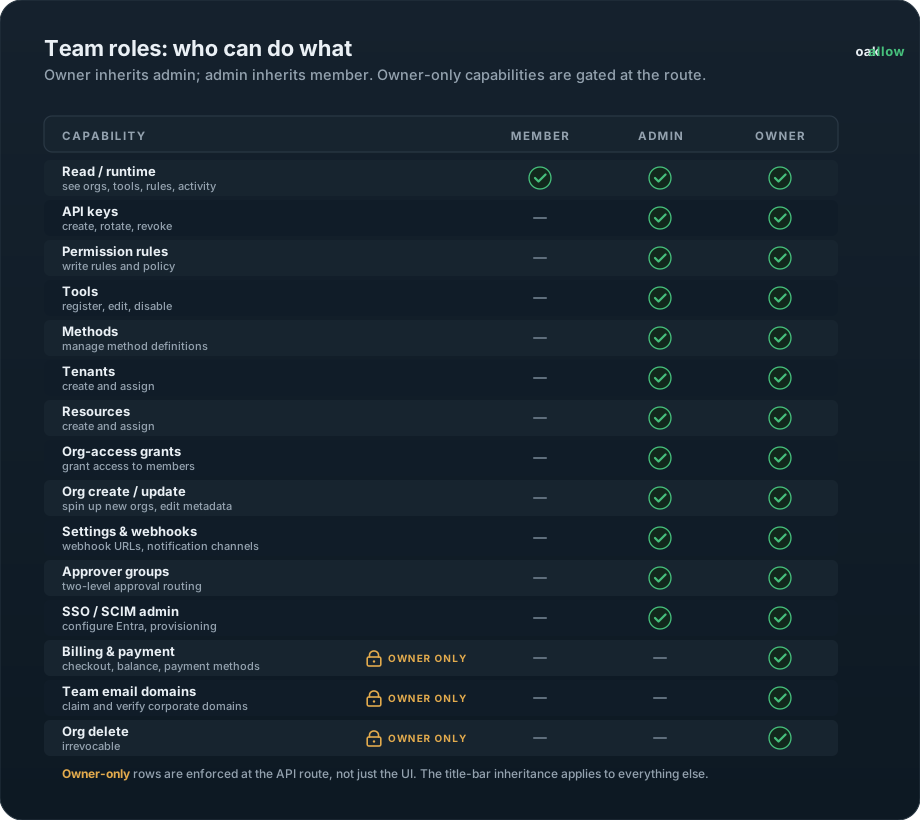
SSO configuration is owner-only: the /api/sso-admin/* routes refuse any non-owner caller regardless of how they signed in. This is the one piece of approver-group setup that an admin cannot do. Admins can add and remove approver-group members by hand on the Team page, but mapping an Entra group to an approver group lives under SSO config, so it requires the owner. If an admin is blocked from setting an Entra group, that is expected: the owner needs to create the mapping.
Web sign-in: employees go to oakallow.io, click Sign In, and enter their corporate email. oakallow recognizes the domain and bounces them to Microsoft, which authenticates them (password plus your MFA and conditional-access). They land on the dashboard. No passkey, recovery code, or email-OTP step.
Mobile sign-in (iOS and Android): the app needs to know which SSO config to use without exposing your Entra tenant ID on the public sign-in screen, so the app code is the bridge. Employees install the app, tap "Sign in with company SSO," and paste the app code once per device (stored locally). "Continue with SSO" opens the system browser to Microsoft, which handles MFA and redirects back into the app. If you rotate the code, employees tap "Replace app code" and paste the new value. Existing sessions keep working until they expire, but the next fresh sign-in needs the new code.
For your IT welcome doc, include: the app code (a low-sensitivity internal identifier, not a secret. It alone cannot authenticate anyone without your Entra tenant), iOS and Android download links, and a note that the corporate email must already be assigned to the oakallow application in your IdP or sign-in fails at Microsoft with a "not assigned" error.
Seats and deactivation: each SSO config has a seat cap (default 25). Provisioning a brand-new user costs one seat; re-signing an existing member does not. Deactivating a user from the SSO members list 401s their next request, strips them from approver groups, and frees the seat. The team_members row stays for audit history.